

Originally published on the Ant Media blog.
By the end of this guide you'll have a working Flutter video conference app running on your iPhone, with people joining the same call from their browsers. Because it's built with Flutter, the same code also runs on Android, the web, Windows, macOS and Linux, and the sample project and the Ant Media Flutter SDK give you everything you need to shape the app to your own product.
Why Flutter for a Video Conference App?
Flutter lets you write the video conference app once and run it almost everywhere. One Dart codebase builds native apps for iOS and Android, a web app, and desktop apps for Windows, macOS and Linux. The Ant Media Flutter SDK handles the WebRTC connection to Ant Media Server on top of that, so the call screen you set up in this guide is the same one your Android, web and desktop users get, with around 0.5 seconds of latency.
This guide uses an iPhone because iOS has the most setup steps: code signing, Developer Mode and device trust. Once the app runs there, running it on an Android phone is a single flutter run.
What Do You Need Before You Start?
You need four things:
- A Mac with the latest Xcode and the Flutter SDK installed
- An iPhone and a USB cable
- An Apple ID: a free account is enough
-
A running Ant Media Server Enterprise Edition. Conferencing is an Enterprise Edition feature; with Community Edition, the Flutter SDK supports WebRTC publishing only. If you don't have a server yet, pick one of these:
- 14-day free trial (self-hosted): fill in the trial request form, get the license key by email, then follow the installation guide. No credit card required.
- Buy a license: monthly or annual subscription, or a one-time perpetual license. See Ant Media Server pricing.
Throughout this guide, AMS_HOST is the server address: an IP address (for example 192.168.1.20) or a domain name.
Step 1: Confirm the iPhone Reaches Ant Media Server
Open Safari on the iPhone and load the Ant Media Server web panel:
http://AMS_HOST:5080
Result: the Ant Media Server page loads in Safari.
Every later step depends on this connection, so fix it first when the page does not load. When Ant Media Server runs on the Mac, use the Mac's IP address, never localhost. The command ipconfig getifaddr en0 prints the Mac's IP address.
Step 2: Clone the Flutter SampleProject
Clone the Ant Media Flutter SDK repository and install the SampleProject dependencies. SampleProject bundles all 5 modes (Publish, Play, Peer to Peer, Conference and Data Channel) in one app.
git clone https://github.com/ant-media/WebRTC-Flutter-SDK.git
cd WebRTC-Flutter-SDK/example/SampleProject
flutter pub get
cd ios && pod install && cd ..
Result: the terminal prints Pod installation complete!
Step 3: Sign the App in Xcode
iOS installs only apps signed with an Apple ID. Open the Xcode workspace:
open ios/Runner.xcworkspace
In Xcode, complete these 5 actions in order:
- Click the blue Runner icon in the left sidebar.
- Select Runner under TARGETS.
- Open the Signing & Capabilities tab.
- Tick Automatically manage signing and choose your Apple ID under Team.
- Change Bundle Identifier to a unique value, such as
com.yourname.conferencedemo.
Result: the Signing section shows no red errors.
Step 4: Enable Developer Mode on the iPhone
Developer Mode lets Xcode and Flutter install debug builds on the iPhone. Complete these 3 actions:
- Connect the iPhone to the Mac and tap Trust on the phone.
- Open Settings → Privacy & Security → Developer Mode on the iPhone, turn Developer Mode on and restart. The option appears only after the phone has connected to Xcode.
- Run the device list command on the Mac:
flutter devices
Result: the iPhone appears in the device list. Copy the iPhone's device ID for Step 5.
Step 5: Run the App on the iPhone
Build and launch the SampleProject on the iPhone with the copied device ID:
flutter run -d YOUR_DEVICE_ID
iOS blocks the first launch as an untrusted developer. Open Settings → General → VPN & Device Management on the iPhone, trust your Apple ID, and run the command again.
Result: the app lists 5 modes: Play, Publish, Peer to Peer, Conference and Data Channel.
Step 6: Connect the App to the WebSocket URL
Tap the settings icon (top right) and enter the WebSocket URL of the WebRTCAppEE application, the default Enterprise Edition application:
ws://AMS_HOST:5080/WebRTCAppEE/websocket
Servers with SSL on a domain use wss://AMS_HOST:5443/WebRTCAppEE/websocket instead.
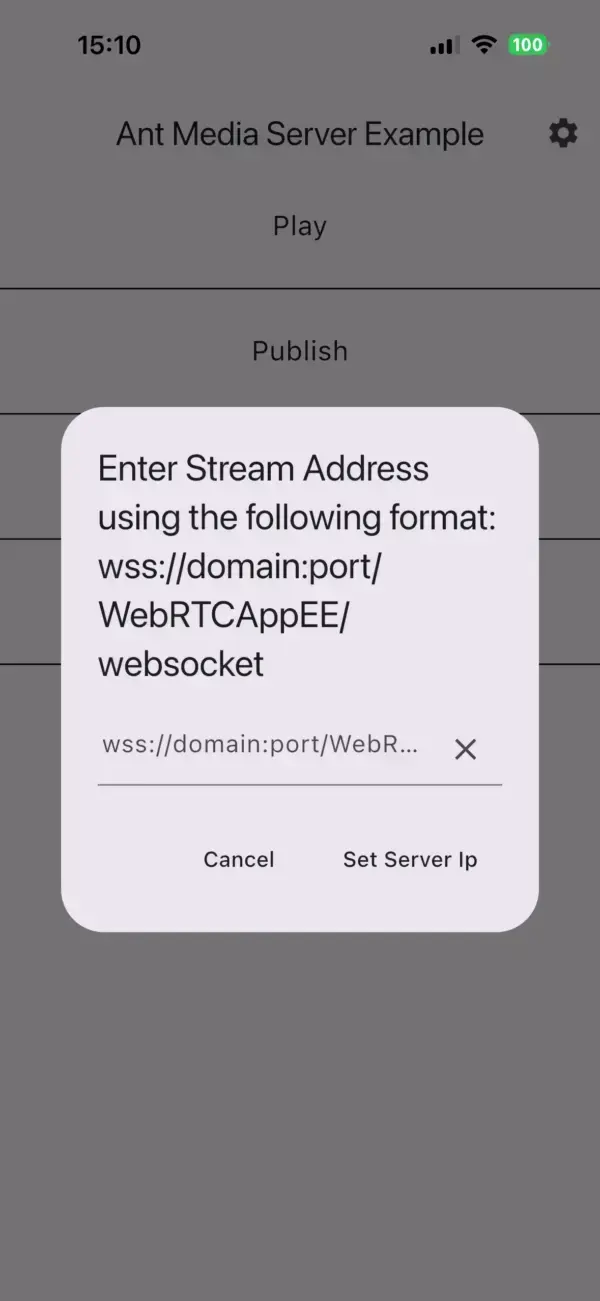
Result: the server indicator turns green.
Step 7: Join the Conference Room from the iPhone
Join room demo from the iPhone with these 4 actions:
- Tap Conference.
- Enter a Stream ID, for example
iphone. - Enter the Room ID
demo. - Tap Connect, then allow camera, microphone and local network access.
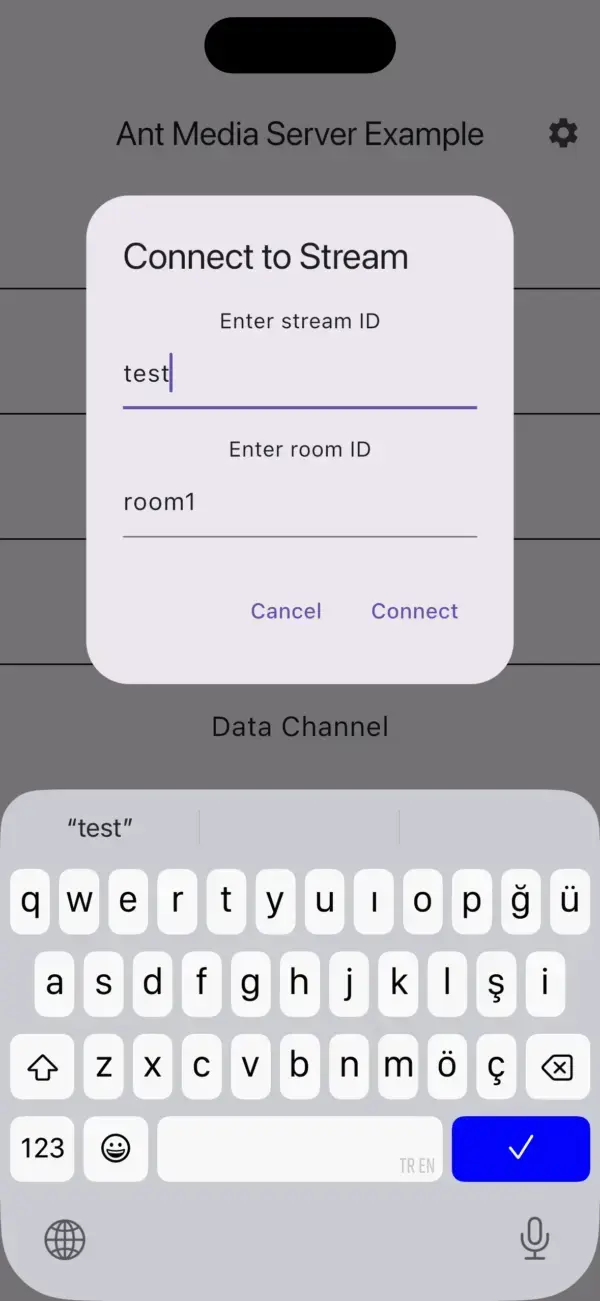
Result: the iPhone camera appears in the first tile.
Step 8: Add 3 Browser Participants
Open the multitrack conference sample page in three browser tabs to add three more people to room demo. Browsers allow camera access over http:// only on localhost, so choose the URL that matches the server setup.
Option A — browser on the machine running Ant Media Server:
http://localhost:5080/WebRTCAppEE/multitrack-conference.html?roomId=demo
Option B — any computer, server with SSL:
https://AMS_HOST:5443/WebRTCAppEE/multitrack-conference.html?roomId=demo
Option C — any computer, server without SSL (development only): add http://AMS_HOST:5080 to chrome://flags/#unsafely-treat-insecure-origin-as-secure in Chrome, relaunch Chrome, then open http://AMS_HOST:5080/WebRTCAppEE/multitrack-conference.html?roomId=demo.
Click Join Room in each tab and allow the camera.
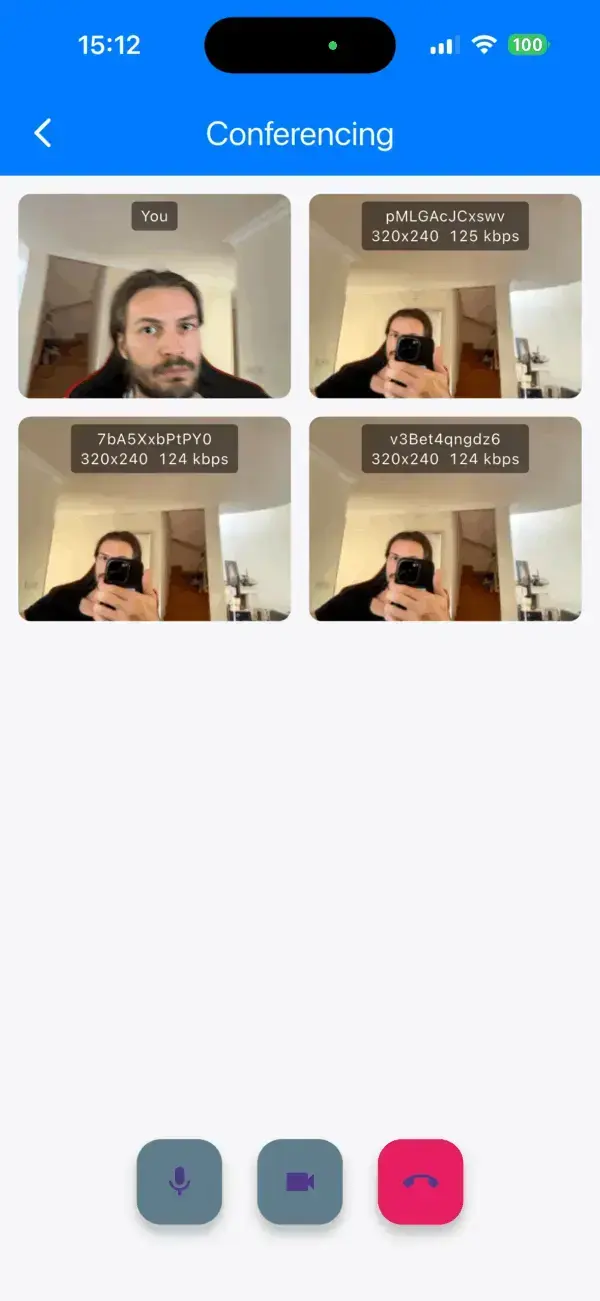
Result: the iPhone shows the three browser participants alongside its own camera. Open more tabs, or join from other devices with the same Room ID, to add more people.
Step 9: Test Controls and Adaptive Bitrate
Test the 2 conference features on the iPhone:
- Camera and microphone: tap the buttons at the bottom of the screen. Each button turns red while its device is off.
- Adaptive bitrate: each tile shows that participant's resolution and bitrate. Open Settings → Developer → Network Link Conditioner on the iPhone, choose the 3G profile and turn it on. The resolution and bitrate values drop, then recover when Network Link Conditioner is off.
How Do You Fix the 8 Common Setup Errors?
Each of the 8 setup errors below has a single fix, covering server reachability, room mismatches, permissions, code signing, stream IDs and CocoaPods.
| Problem | Fix |
|---|---|
| The app never connects | Repeat Step 1. On a physical iPhone, localhost refers to the phone itself; use the server's IP address or domain. |
| Browser participants do not appear on the iPhone | Use the same application (WebRTCAppEE) and the same room on every device. Open multitrack-conference.html, not conference.html, because the Flutter SDK joins track-based SFU conferences and the browser page has to match that room type. |
| Browser tabs cannot access the camera | The page is loaded over http:// from a host other than localhost. Install an SSL certificate and use port 5443; the guide to enabling SSL certificates covers the domain setup. Option C in Step 8 covers development-only testing. |
| The app cannot reach a server on the local network | The local network permission was denied. Enable the app under Settings → Privacy & Security → Local Network. |
| Xcode: "cannot be registered to your development team" | The bundle identifier is taken. Change the bundle identifier to a unique value (Step 3). |
| "This app can only be launched from Flutter tooling" | Debug builds start only through flutter run. Start the app from the Mac instead of tapping the icon. |
invalidStreamName error |
Use only English letters and numbers in stream IDs. |
pod install fails with XCLocalSwiftPackageReference
|
CocoaPods is older than 1.16. Upgrade with brew upgrade cocoapods (Homebrew installs) or sudo gem install cocoapods (RubyGems installs). |
The room mismatch in row 2 is the error most specific to this tutorial: every device connects to Ant Media Server successfully, yet the iPhone and the browser tabs never see each other because the devices joined different room types.
What Can You Build Next?
Your conference app works. From here you can:
- Run it on other platforms. Flutter builds the same code for Android, the web, Windows, macOS and Linux, so you don't rewrite the call screen for each one.
- Make it interactive. Send chat messages, reactions or other in-call events over WebRTC data channels, without touching audio or video.
- Try the other SDK modes. The same sample app includes Publish & Play for one-to-many streaming and P2P for direct calls. The Flutter SDK documentation covers each mode.
Frequently Asked Questions
Does Ant Media Server Community Edition support Flutter video conferencing?
No. Flutter video conferencing requires Ant Media Server Enterprise Edition. With Community Edition, the Flutter SDK supports WebRTC publishing only; WebRTC playback, conference rooms and data channels are Enterprise Edition features.
Which WebSocket URL does the Flutter app use?
The Flutter app uses ws://AMS_HOST:5080/APP_NAME/websocket without SSL and wss://AMS_HOST:5443/APP_NAME/websocket with SSL. This tutorial uses WebRTCAppEE as the application name. Production apps use wss:// on port 5443.
Why does the browser use multitrack-conference.html?
The browser uses multitrack-conference.html because the Flutter SDK joins multitrack conference rooms. The Flutter SDK's Room ID parameter targets WebRTC multitrack conference mode, and a browser participant appears on the iPhone only when the browser page joins the same room type.
How does adaptive quality work in the conference?
Adaptive quality lowers each stream's resolution and bitrate when bandwidth drops and raises both when bandwidth recovers. The tile captions display the current values, and the relationship between bitrate and resolution explains why both numbers move together.
Does the conference work when participants are on different networks?
Yes. Participants on different networks connect through STUN, and participants behind restrictive firewalls require a TURN server. The Flutter SDK's connect() method accepts a custom ICE server list. The guide to NAT traversal setup covers TURN configuration.
Does the same Flutter app run on Android?
Yes. The same SampleProject runs on Android without code changes. Enable developer options and USB debugging on the Android device, connect the device, and run the project with flutter run or from Android Studio.
How do you secure Flutter conference rooms?
Flutter conference rooms are secured with stream tokens passed through the token parameter of connect(). Ant Media Server validates the token before allowing publish or play. JWT stream security adds time-based expiration to each token.
What is the difference between the Flutter SDK and the native iOS SDK?
The Flutter SDK builds one codebase for iOS and Android; the native iOS SDK builds iOS-only apps in Swift. Teams with an existing Swift app start from the native iOS SDK. Both SDKs ship free with an Enterprise Edition license.
Conclusion
You now have a multi-party Flutter video conference app running on your iPhone, with browser participants in the same room, camera and microphone controls, and video quality that adapts to the network. The same Flutter code runs on Android, the web and desktop, so the next step is taking it to the platforms your users are on. To test multi-party WebRTC rooms beyond a single server, a 14-day free trial of Ant Media Server Enterprise Edition gives you clustering, adaptive bitrate and every SDK, with no credit card required.
Source code: Ant Media Flutter SDK on GitHub.
Top comments (0)
For further actions, you may consider blocking this person and/or reporting abuse